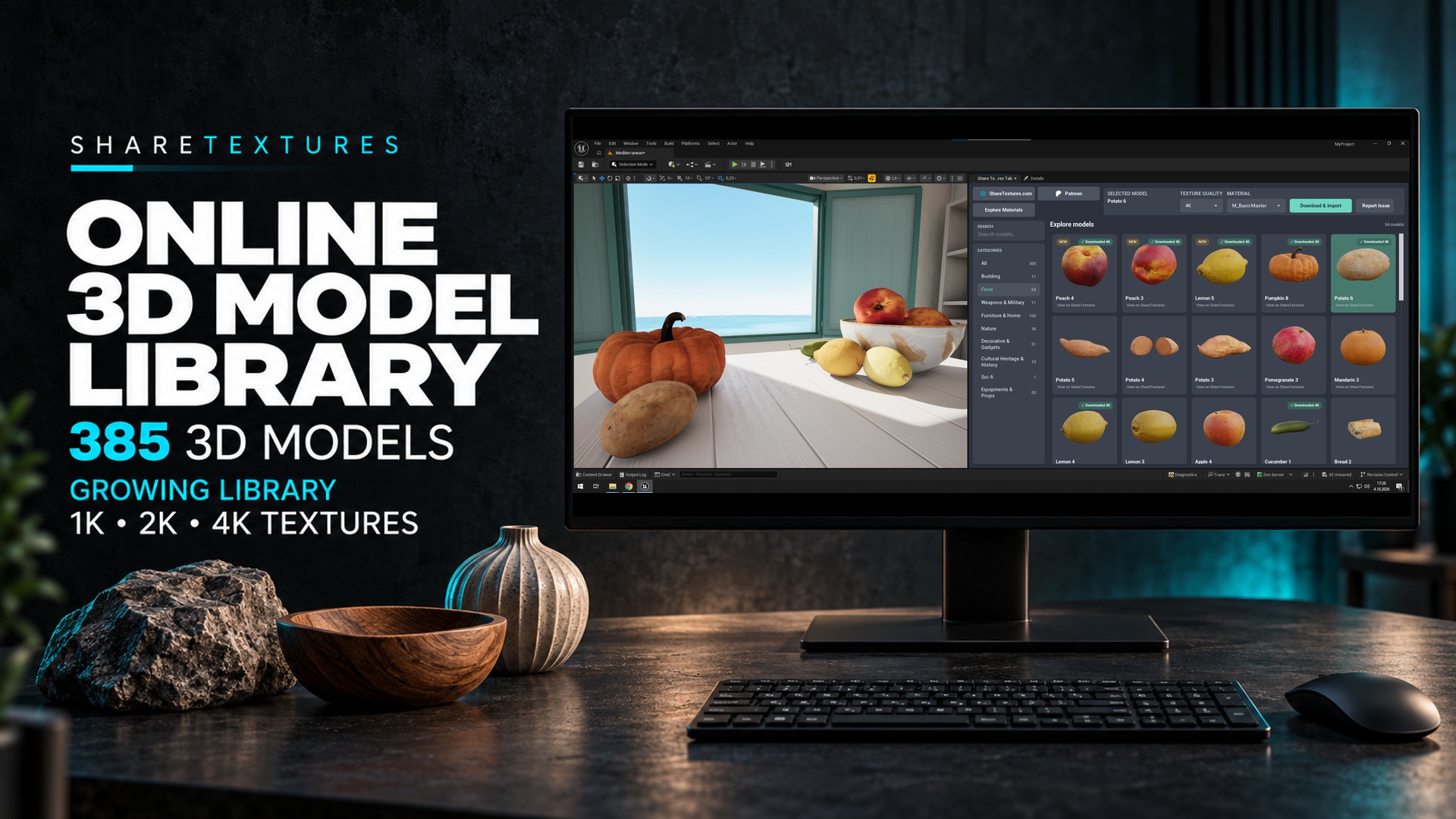
OneClick Models is a dedicated Unreal Engine Model Library plugin that integrates directly with ShareTextures.com, allowing you to download FBX models and their PBR textures without leaving the Unreal Engine environment. Streamline your workflow by accessing and importing models from ShareTextures with a few clicks.
Explore our model collection on sharetextures.com/models. With this plugin, there is no need to manually download the FBX model and texture archives or set up each material instance. Select a model, an available texture resolution, and a master material, then press Download & Import. The plugin imports the mesh and textures, creates a material instance, and assigns it to the imported model.
Our master material is designed to be very simple and user-friendly. Models and textures are stored on your computer and imported directly into your Unreal Engine project.
Our online model library grows as new assets are added. The plugin loads the available collection inside Unreal Engine, so you can discover models without leaving your project. If you want to support us, visit our Patreon.
OneClick Models Fab Product Page
Key Features
- Direct Integration: Access ShareTextures’ online 3D model library right within Unreal Engine.
- Constantly Updated: Enjoy a library that grows as new models are added.
- Multiple Resolutions: Choose from 1K, 2K, or 4K texture resolution options where available, giving you the flexibility to match your project’s needs.
- User-Friendly Interface: Browse and select models with thumbnail previews, category filters, and search. The responsive panel can be docked anywhere in the editor.
- Unreal Engine Naming Conventions: Mesh, Material & Texture names are automatically adjusted to fit Unreal Engine’s naming conventions.
- Automatic FBX Import: Download and import the model mesh alongside its texture set.
- Automatic Material Assignment: Create a material instance from the selected master material and assign it to the imported mesh.
- Local Cache and Download Badges: Reuse cached files and identify downloaded assets for the selected texture resolution.
- New Asset Badge: Recently published models are marked with a New badge.
- Report Issue: Report a selected model directly from the panel. Its name and product page link identify the asset for ShareTextures.
Getting Started
- Installation:
- Install a compatible OneClick Models release for your Unreal Engine version.
- Open Edit > Plugins, enable OneClick Models, and restart the editor if prompted.
- **Requires Unreal Engine’s built-in Blueprint Material Texture Nodes plugin to be enabled.
- Using the Plugin:
- Open the OneClick Models panel from the Unreal Engine toolbar.
- Browse the available models and select the one you need.
- Choose an available texture resolution: 1K, 2K, or 4K. This controls texture quality, not polygon count.
- Choose the predefined Master-Material
- Click Download & Import. The FBX mesh and textures will be imported, a material instance will be created, and the material will be assigned to the mesh.
- Imported assets use the Content/ShareModels/Category/Resolution path structure. Meshes, material instances, and textures are organized for the selected model.
- You can dock the plugin window anywhere you like.
- Managing Downloads:
- By default, models and textures are stored in a predefined location on your computer.
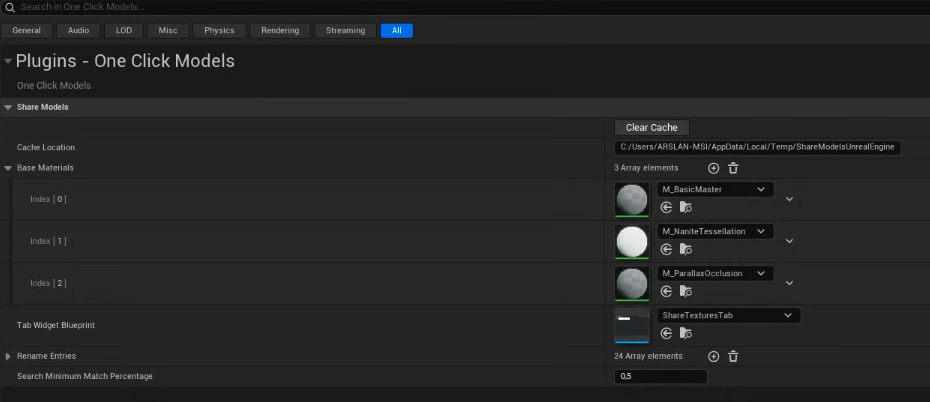
On Project Settings > Plugins > One Click Models You can clear the cache, and define a custom cache folder for models, textures, and preview images.
- By default, models and textures are stored in a predefined location on your computer.
- After the download, the mesh and textures are automatically imported into the Unreal Engine project.
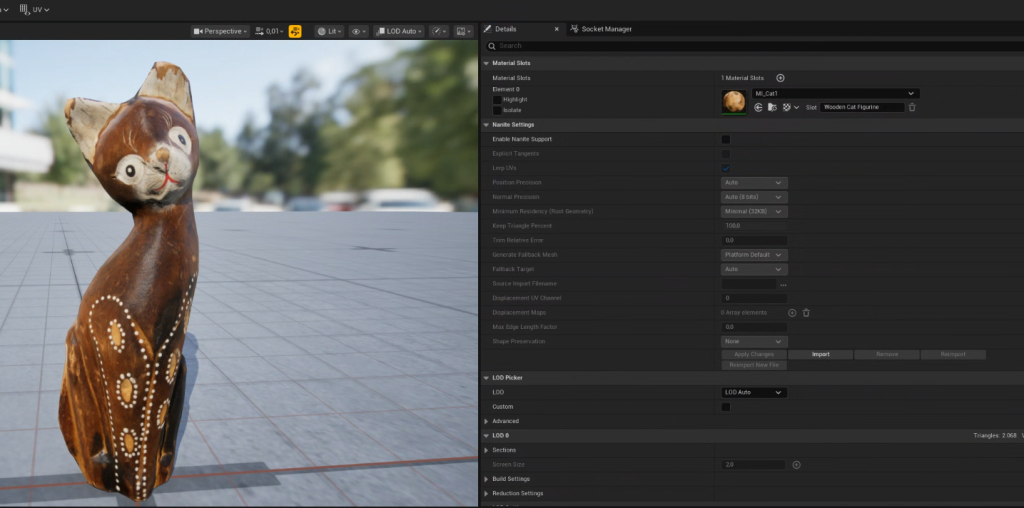
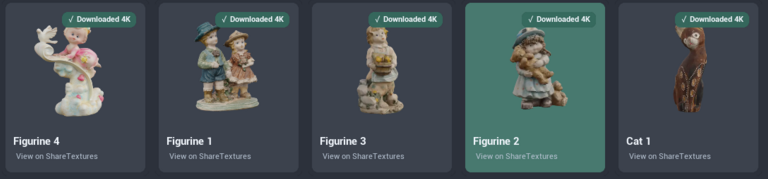
- A Downloaded badge identifies models whose FBX file and selected texture resolution are cached. Cached files can be reused without downloading them again.
MasterMaterials
- BasicMaster
- This is the default master material for the standard PBR setup.
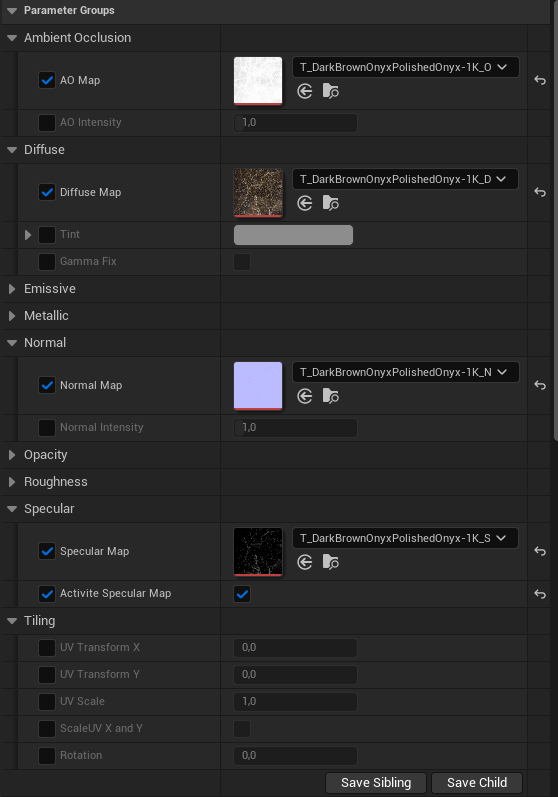
- If an asset provides a Specular Map instead of a Roughness Map, enable and configure the appropriate material parameters for its texture set.
- ParallaxOcclusion Master Material
- This master material creates fake displacement on the surface using shadows and UV data.
- Select a model
- Select the ParallaxOcclusion master material
- Select an available texture resolution and press Download & Import.
- Material Instance will be created automatically like usual. You can change the displacement power using material instance parameters.
- A Height Ratio between 0.02 and 0.04 can be a starting point; adjust it for the asset and the visual result.
- Min and Max Steps control the number of samples used for the parallax effect, balancing quality and performance at different viewing angles.
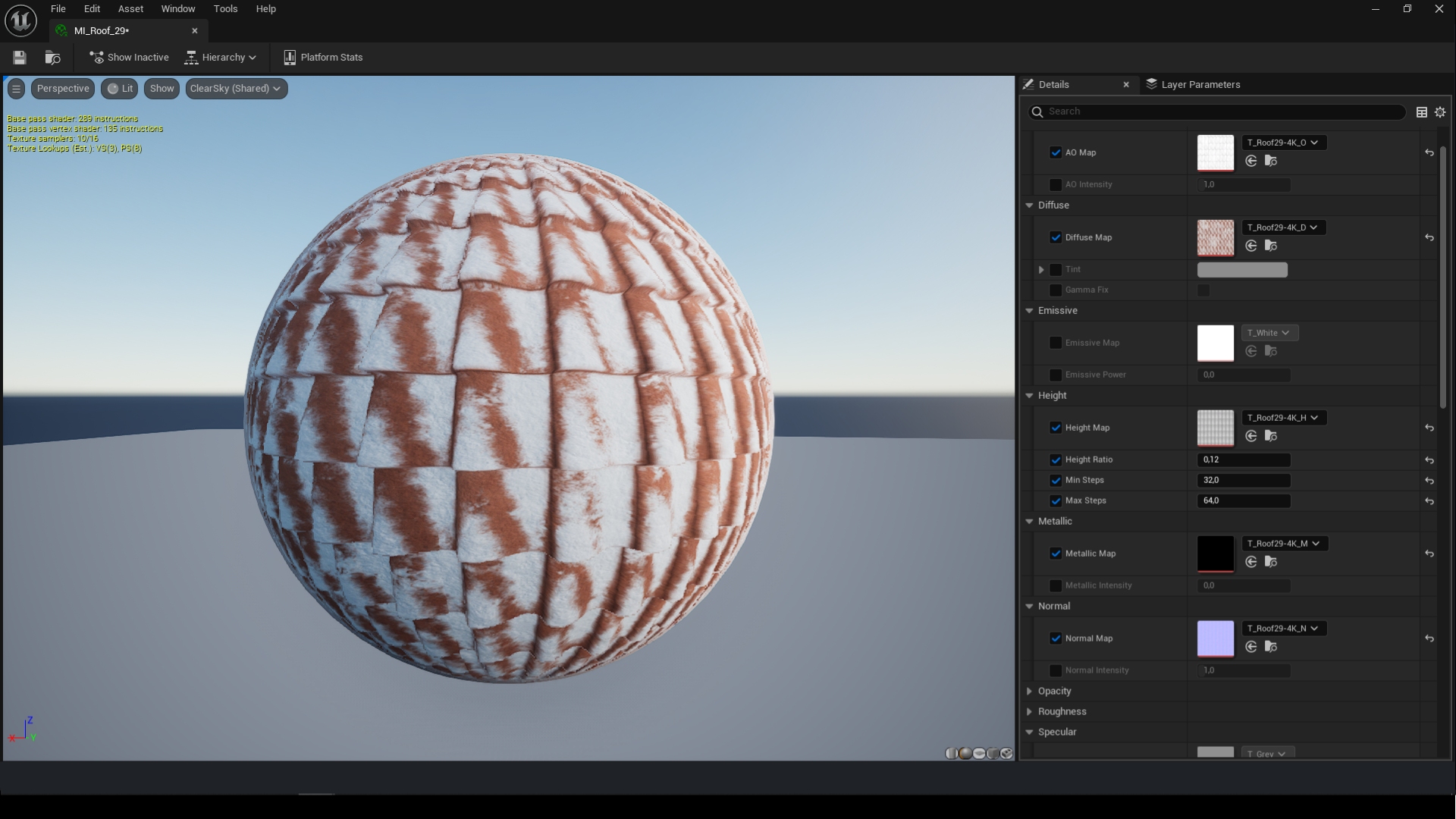
- This master material creates fake displacement on the surface using shadows and UV data.
- Nanite Tessellation / Displacement Master Material
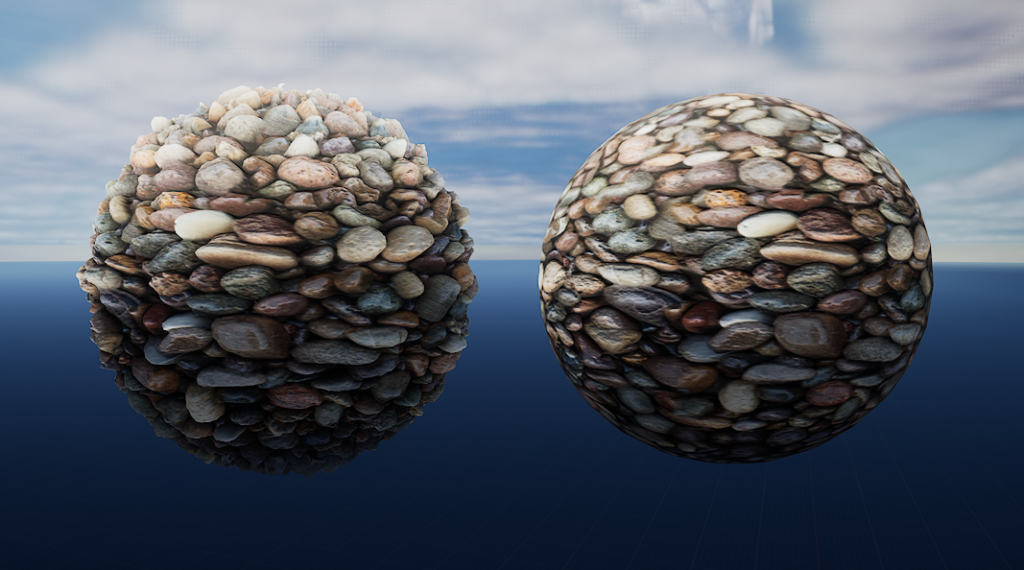
- For assets with a suitable height map, activate Nanite Tessellation to use geometric displacement. Availability depends on your Unreal Engine version and project settings.
- Open your DefaultEngine.ini file inside of the “Config” folder.
- Add r.Nanite.AllowTessellation=1 and r.Nanite.Tessellation=1 under the [/Script/Engine.RendererSettings]
- Restart the Project
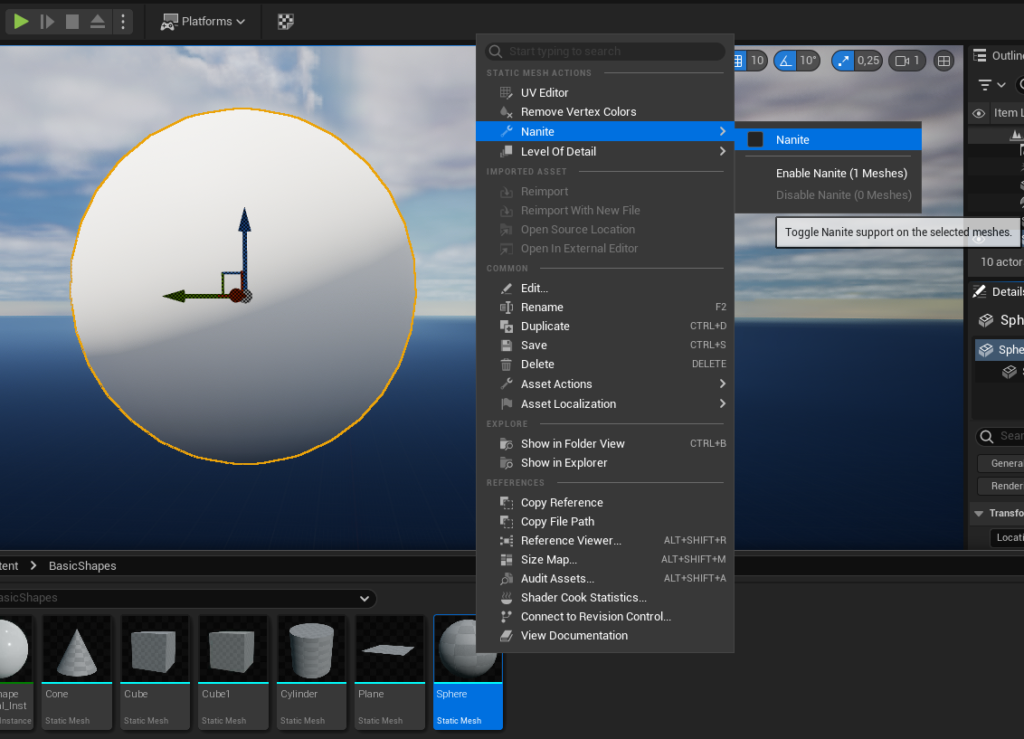
- Select the Static Mesh on the content browser, right click, Nanite>Enable Nanite for the selected static mesh.
- Apply the NaniteDisplacement Material Instance to the mesh
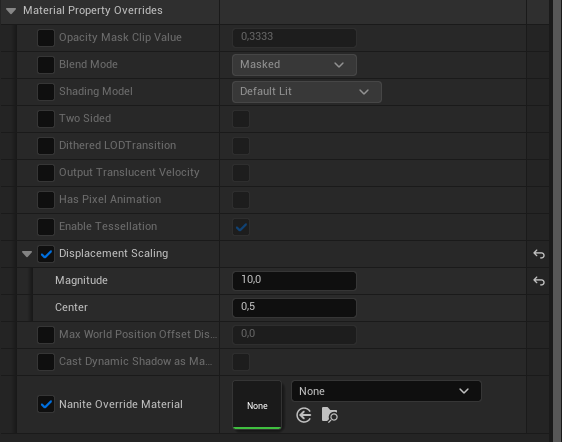
- You can change Displacement Scaling using Material Property Overrides inside Material Instance.
- For assets with a suitable height map, activate Nanite Tessellation to use geometric displacement. Availability depends on your Unreal Engine version and project settings.
Troubleshooting
- Download Issues:
- Ensure you have a stable internet connection.
- Verify that you have sufficient storage space on your computer.
- Preview images are downloaded as models become visible in the library. The cache size depends on the assets you browse.
- High-resolution textures and detailed meshes can require substantial download size, disk space, and memory. Choose texture quality according to your project’s needs.
- Material Setup Problems:
- Check if the master material is correctly configured.
- Washed-out colors: Some of our textures use a 16-bit RGB color space, which may cause them to appear washed out or look like they have a white layer over them. To fix this, open the Material Instance and enable the Gamma Fix checkboxes.
- Roughness Maps: Roughness values can produce different results depending on the renderer and lighting setup. If a material appears too reflective or not reflective enough, you can adjust the Min-Max values of the Roughness Map to fine-tune the roughness level to your needs.
- Height/Displacement Maps: Support for height and displacement features varies between Unreal Engine versions. For model meshes, we generally do not recommend using height/displacement maps, as they can distort the mesh and break its original structure, especially with stronger displacement settings. If you need to use these features, you may need to manually adjust the material setup or use our predefined Master Materials.
- DirectX Normal Maps: The majority of our textures are designed with DirectX Normal Maps, which may not always be compatible with all engines or rendering systems. If your material doesn’t look correct or the surface details appear reversed, try inverting the Green (Y) channel of the normal map.
- Reporting Issues
- If you find a broken download, missing texture, or a problem with a model, you can report the selected asset without leaving Unreal Engine.
- Select the model in the library.
- Click Report Issue beside Download & Import.
- The button displays Sending… while the request runs, then Success when it completes.
- The report sends the model name and product page link to ShareTextures. The button stays disabled until another model is selected to reduce repeated submissions.
- Need further help? please contact us using our email or Discord.